Sample data sets
In order to create a grouped bar chart, also known as side by side bar chart, clustered bar chart or dodged bar plot, you will need a categorical variable for the main groups (the X-axis) and another categorical variable for the subgroups, which will be represented with a different color. As with bar plots in ggplot2, your data set can contain the value for each combination of groups or all the occurrences of the categorical variables, so you want to count them.
Data with a value for each group and subgroup
df <- data.frame(x = rep(c("A", "B", "C"), each = 3),
                 group = rep(c("G1", "G2", "G3"), times = 3),
                 y = c(10, 6, 8, 5, 9, 12, 7, 4, 11))
Only categorical data
set.seed(1)
df2 <- data.frame(cat = sample(c("A", "B", "C"), 100, replace = TRUE),
                  group = sample(c("G1", "G2"), 100, replace = TRUE))
Grouped bar chart with position = "dodge"
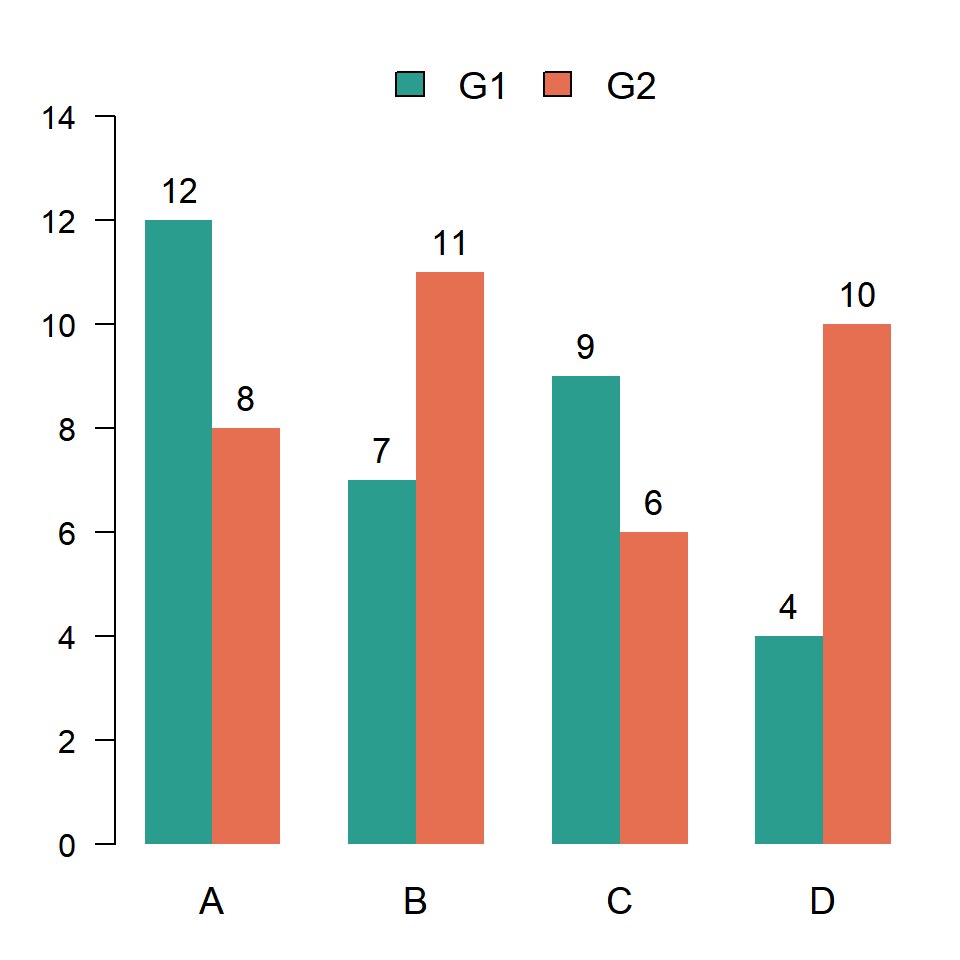
By default, if you pass a categorical variable to the fill argument of aes ggplot2 will create a stacked bar chart. In order to place the bars side by side you will need to set position = "dodge" inside geom_col or geom_bar. If you prefer base R check the grouped barplot in R with the barplot function.
geom_col
If your data already contains the value for each group and subgroup, as in our sample data frame named df, use geom_col and pass the subgroups to fill.
# install.packages("ggplot2")
library(ggplot2)

ggplot(df, aes(x = x, y = y, fill = group)) +
  geom_col(position = "dodge")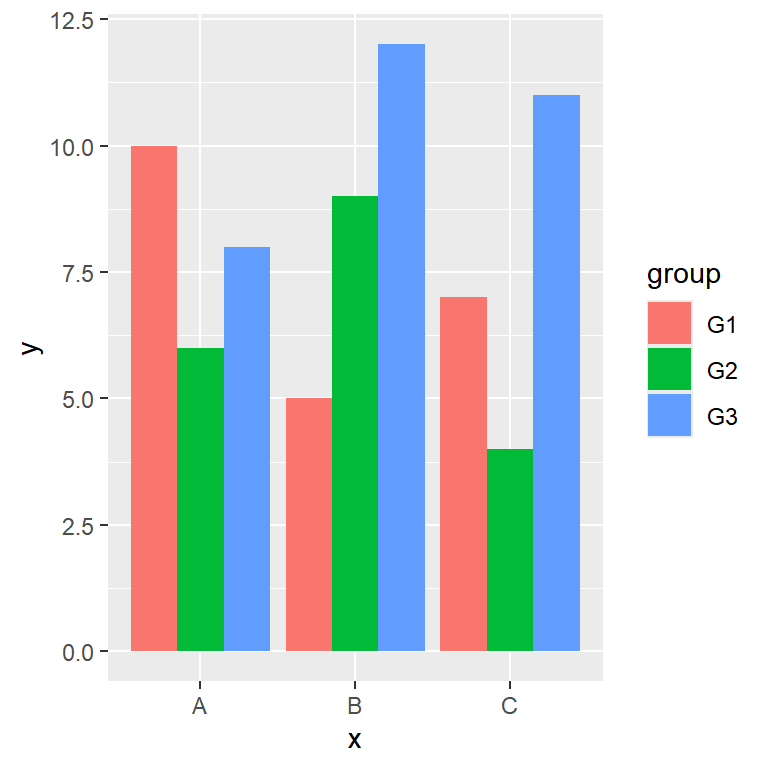
geom_bar
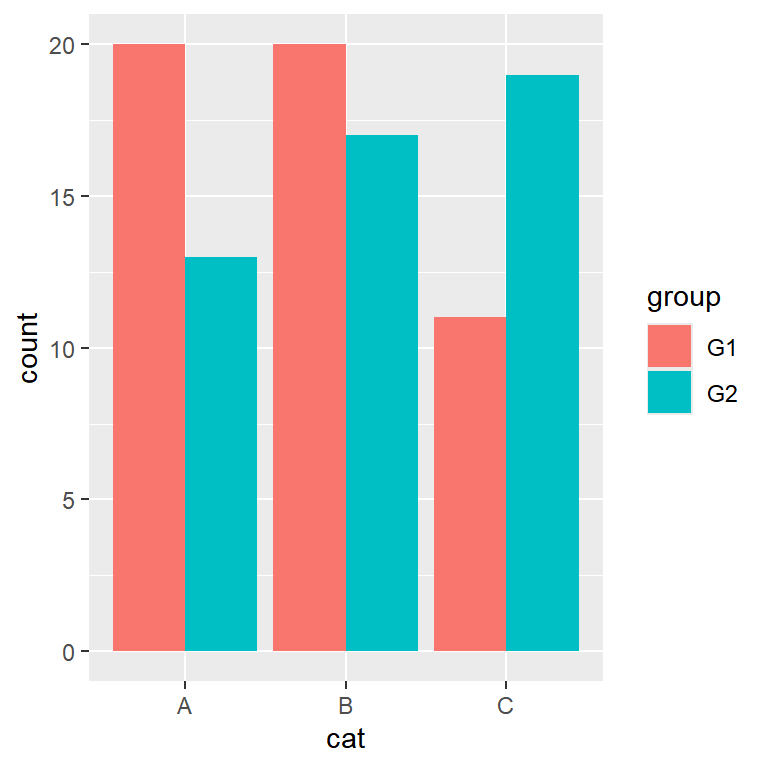
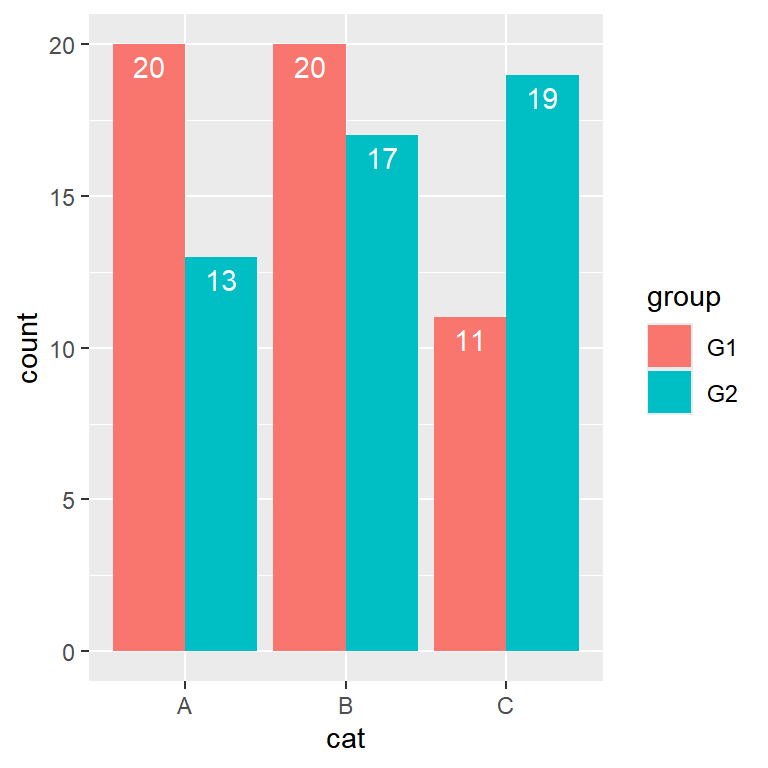
If you only have the categorical variables, as in df2, use geom_bar instead, so the function will count the number of occurrences for each combination of groups.
# install.packages("ggplot2")
library(ggplot2)

ggplot(df2, aes(x = cat, fill = group)) +
  geom_bar(position = "dodge")
Space between the bars
The position = "dodge" option is equivalent to position = position_dodge(), but the function allows customizing the distance between the bars of each group with its width argument. Note that the width argument of geom_col controls the width of the bars, so you can combine both to leave some space between the bars of the same group.
# install.packages("ggplot2")
library(ggplot2)

ggplot(df, aes(x = x, y = y, fill = group)) +
  geom_col(position = position_dodge(width = 0.8),
           width = 0.7)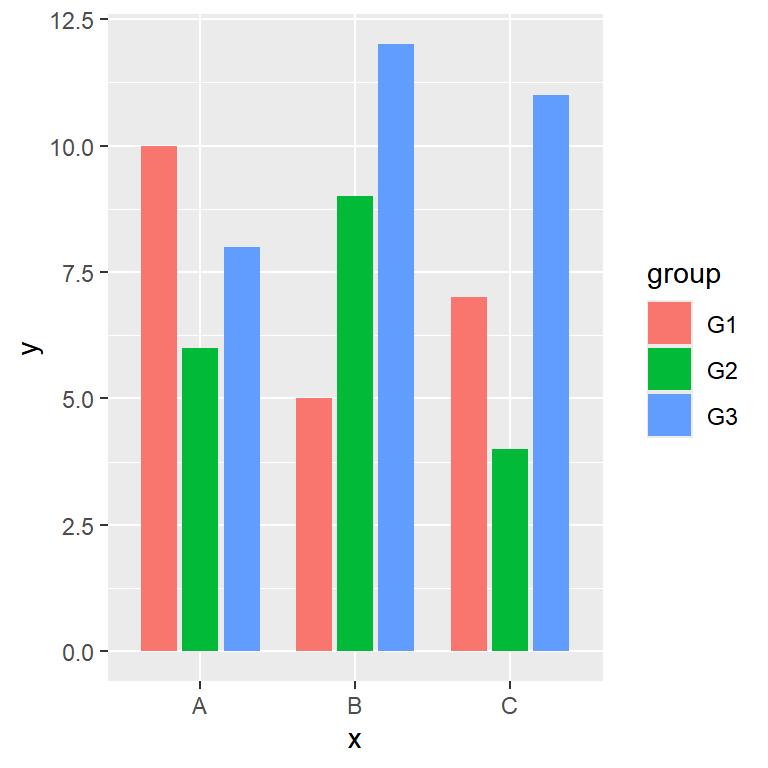
Bars with the same width
When some combinations of groups don’t exist the bars will have different widths, as ggplot2 fills all the available space for each group. In the following data set the group C only has one subgroup, so its bar is as wide as the three bars of the other groups.
df3 <- df[-c(8, 9), ]

ggplot(df3, aes(x = x, y = y, fill = group)) +
  geom_col(position = "dodge")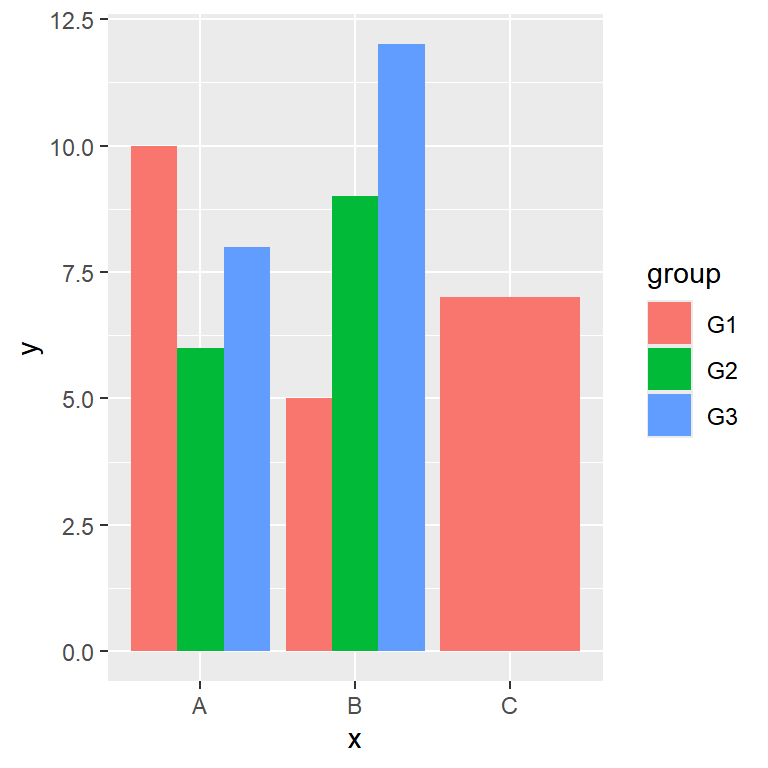
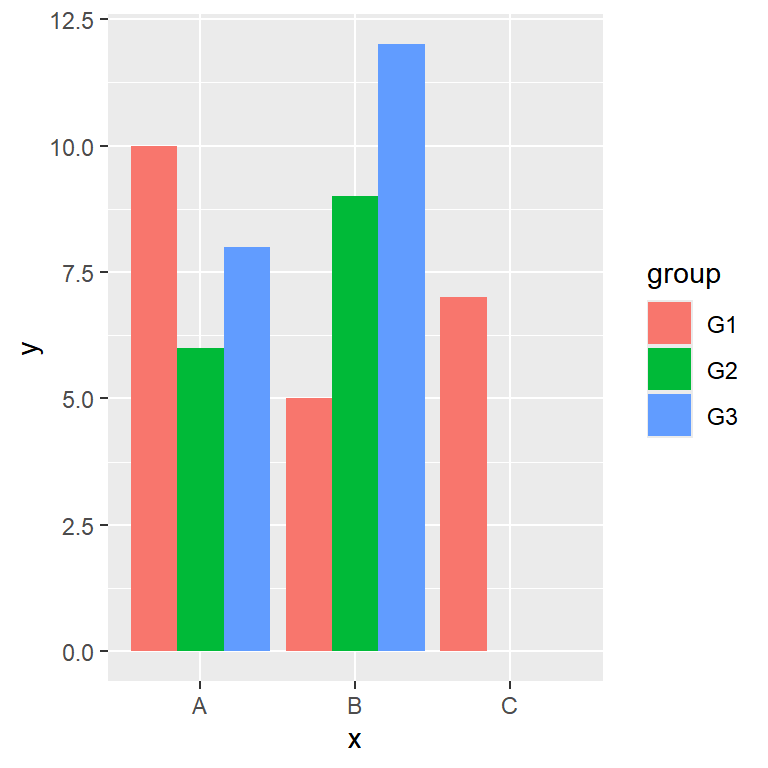
preserve = "single"
In order to keep the same width for all the bars set preserve = "single" inside position_dodge. The bar will be placed in the position of its subgroup, so an empty space will remain in the group.
ggplot(df3, aes(x = x, y = y, fill = group)) +
  geom_col(position = position_dodge(preserve = "single"))
position_dodge2
If you prefer centering the bars of each group you can use position_dodge2 with preserve = "single". This function also allows adding some space between the bars with the padding argument.
ggplot(df3, aes(x = x, y = y, fill = group)) +
  geom_col(position = position_dodge2(preserve = "single"))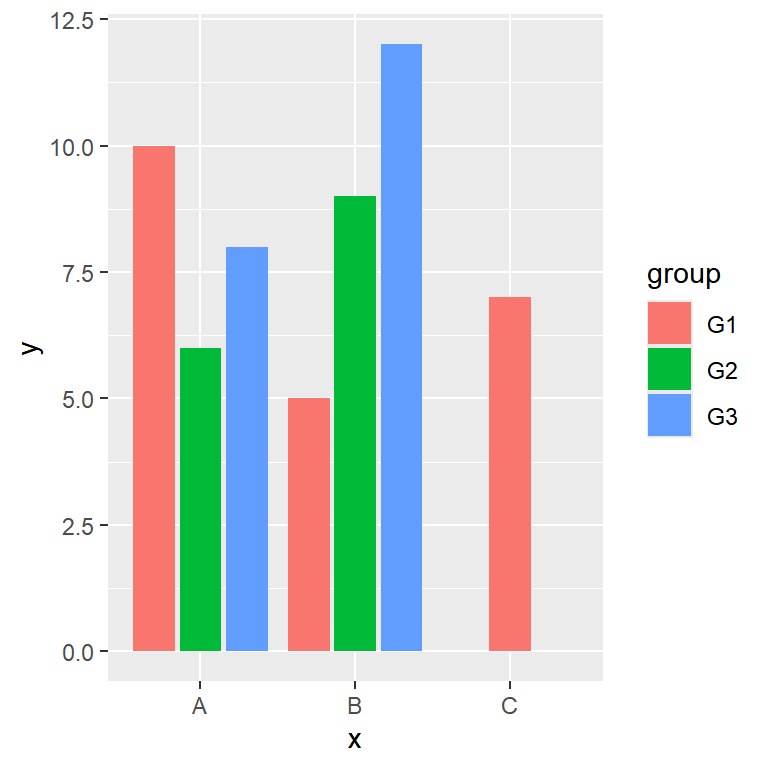
Adding labels to the bars
You can add the values over the bars with geom_text or geom_label. The key is to use the same dodge position for the texts and for the bars, so each label will be placed over its bar. Note that the default dodge width of the bars is 0.9.
# install.packages("ggplot2")
library(ggplot2)

ggplot(df, aes(x = x, y = y, fill = group)) +
  geom_col(position = "dodge") +
  geom_text(aes(label = y),
            position = position_dodge(width = 0.9),
            vjust = -0.5)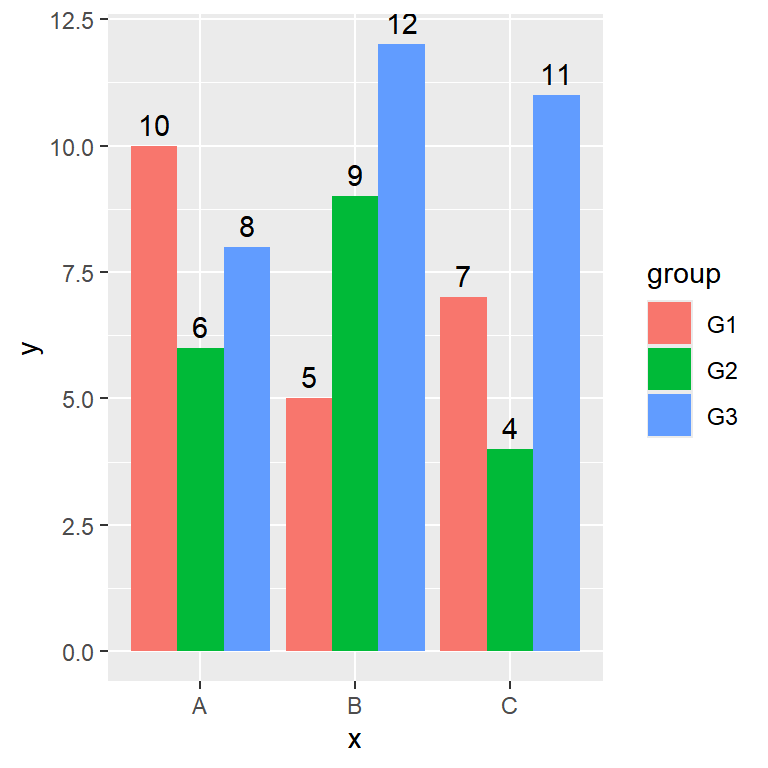
If you are counting the observations with geom_bar you can display the count of each bar with after_stat(count).
# install.packages("ggplot2")
library(ggplot2)

ggplot(df2, aes(x = cat, fill = group)) +
  geom_bar(position = "dodge") +
  geom_text(aes(label = after_stat(count)), stat = "count",
            position = position_dodge(width = 0.9),
            vjust = 1.5, colour = "white")
Grouped bar chart with error bars
If your values are means you can add error bars to each bar with geom_errorbar. As with the labels, you will need to set the same dodge width for the bars and for the error bars. In this example we are adding a column named se with the standard error of each value.
df$se <- c(1.2, 0.8, 1, 0.7, 1.1, 1.5, 0.9, 0.6, 1.3)

ggplot(df, aes(x = x, y = y, fill = group)) +
  geom_col(position = position_dodge(width = 0.9)) +
  geom_errorbar(aes(ymin = y - se, ymax = y + se),
                position = position_dodge(width = 0.9),
                width = 0.25)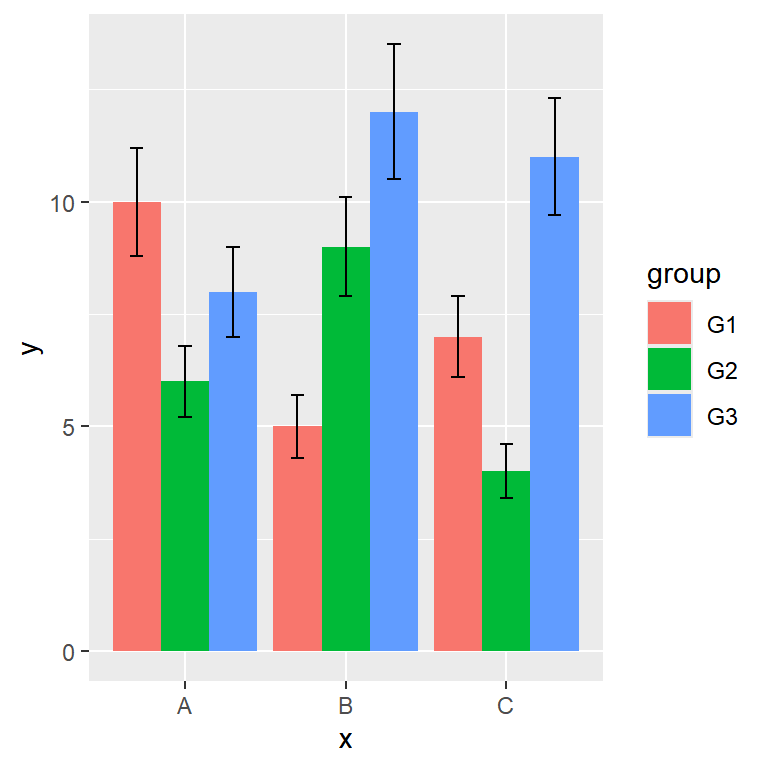
Horizontal grouped bar chart
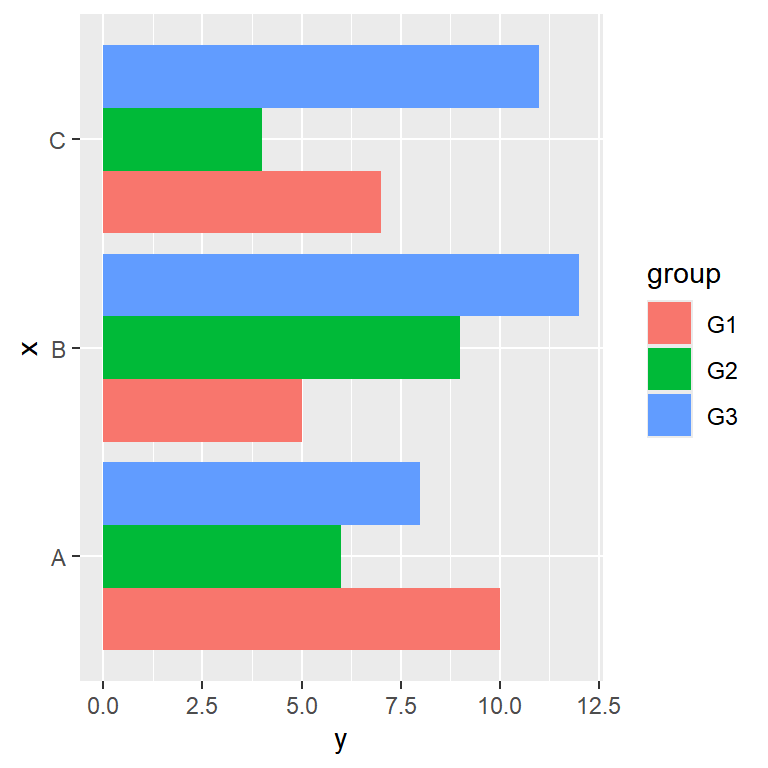
There are two ways to create a horizontal grouped bar chart: flipping the axes with coord_flip or passing the categorical variable to the y argument of aes, as in the example below.
# install.packages("ggplot2")
library(ggplot2)

ggplot(df, aes(x = y, y = x, fill = group)) +
  geom_col(position = "dodge")
Order of the bars
The order of the groups and the order of the bars inside each group depend on the levels of the corresponding categorical variables. In order to change them you can reorder the levels of the factors with the factor function.
df$x <- factor(df$x, levels = c("C", "B", "A"))
df$group <- factor(df$group, levels = c("G3", "G2", "G1"))

ggplot(df, aes(x = x, y = y, fill = group)) +
  geom_col(position = "dodge")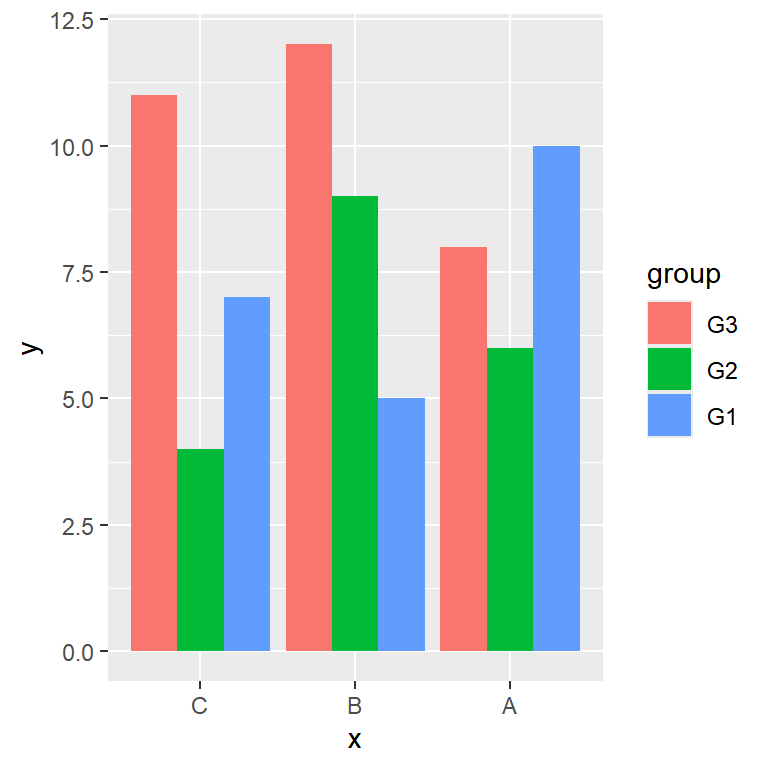
Color customization
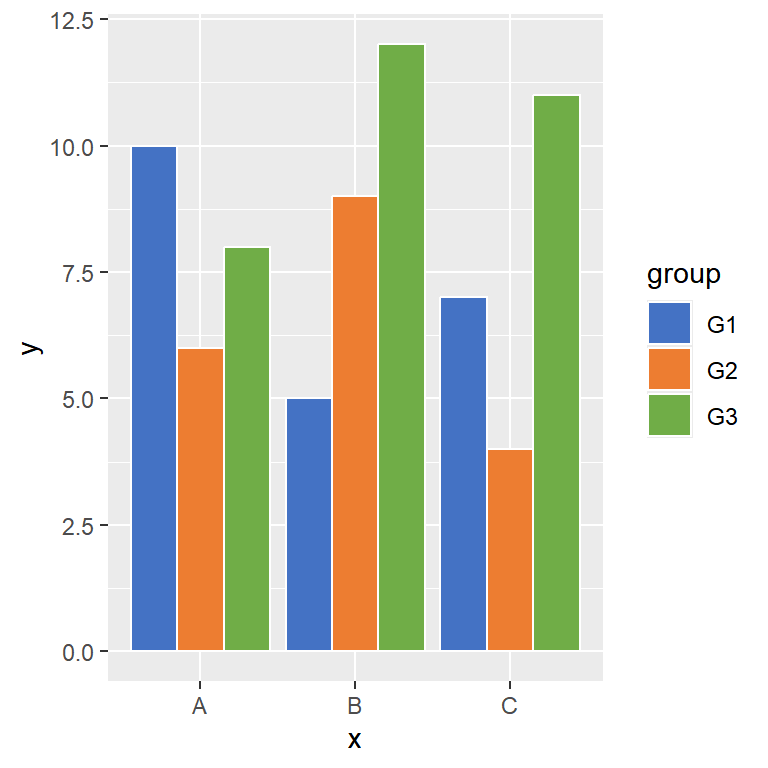
The bars are filled with the default color palette of ggplot2, but you can choose your own colors with scale_fill_manual or use any other color palette. In addition, you can add a border to the bars with the color argument of geom_col.
# install.packages("ggplot2")
library(ggplot2)

ggplot(df, aes(x = x, y = y, fill = group)) +
  geom_col(position = "dodge", color = "white") +
  scale_fill_manual(values = c("#4472C4", "#ED7D31", "#70AD47"))
Legend customization
The legend of the grouped bar chart shows the subgroups passed to fill. You can change its title with labs and its position with the legend.position component of the theme function. See the legends in ggplot2 tutorial for further customization.
# install.packages("ggplot2")
library(ggplot2)

ggplot(df, aes(x = x, y = y, fill = group)) +
  geom_col(position = "dodge") +
  labs(fill = "Subgroup") +
  theme(legend.position = "bottom")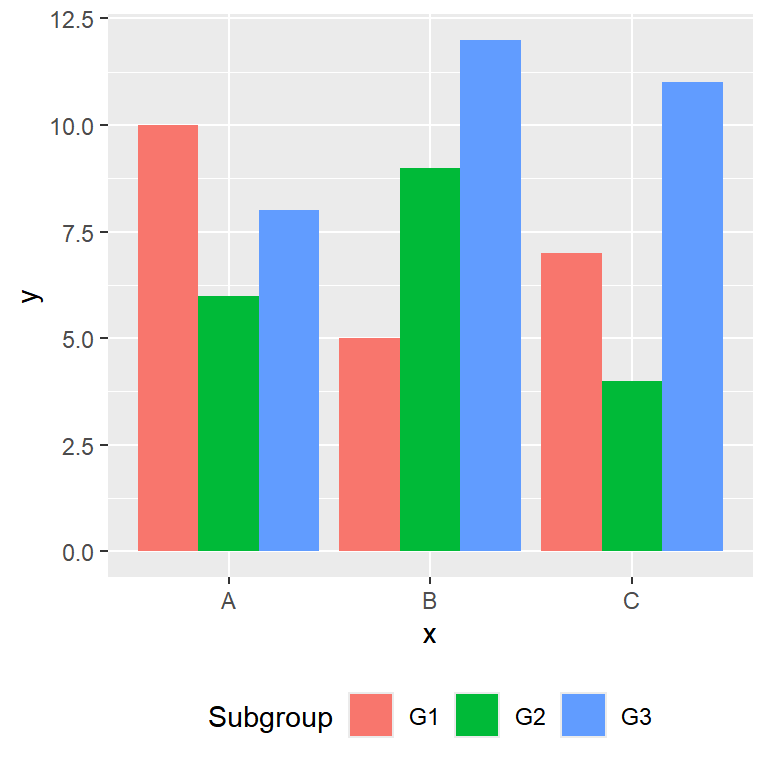
Grouped vs stacked bar chart
A grouped bar chart makes it easier to compare the values of the subgroups, as all the bars start from zero. If you are more interested in the total of each group and in the contribution of each subgroup to that total you can create a stacked bar chart just removing the position argument, or a percentage stacked bar chart setting position = "fill".
# install.packages("ggplot2")
library(ggplot2)

ggplot(df, aes(x = x, y = y, fill = group)) +
  geom_col(position = "fill")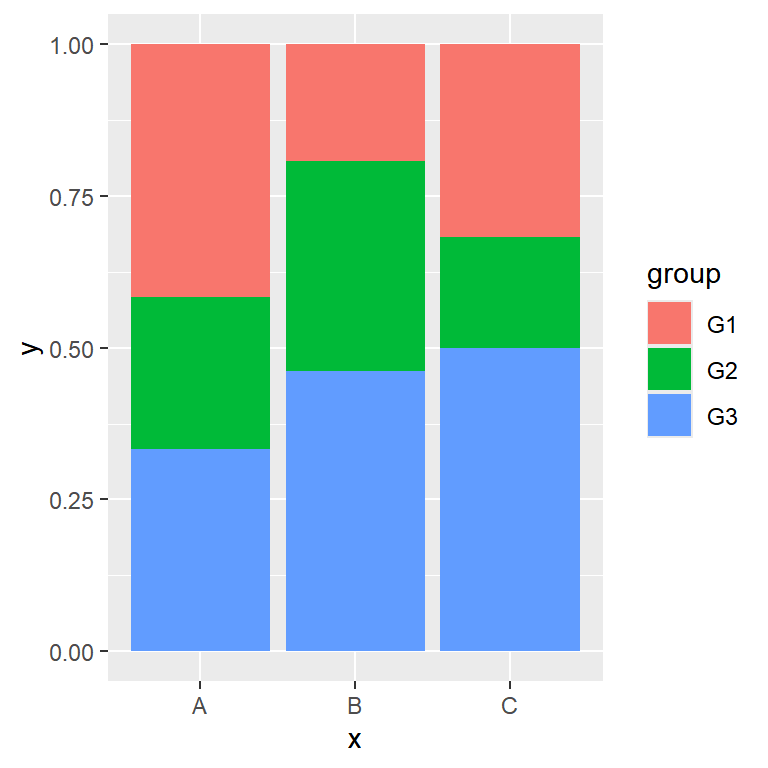
Master Statistics
Learn statistics from the basics to advanced techniques, clearly explained
Go to site